Blog / · Updated
Show metafields on product cards in Shopify bundles
Show metafields on product cards in your Shopify bundle: calories, protein, dietary tags or care notes as a badge, price line or text block, in four steps.
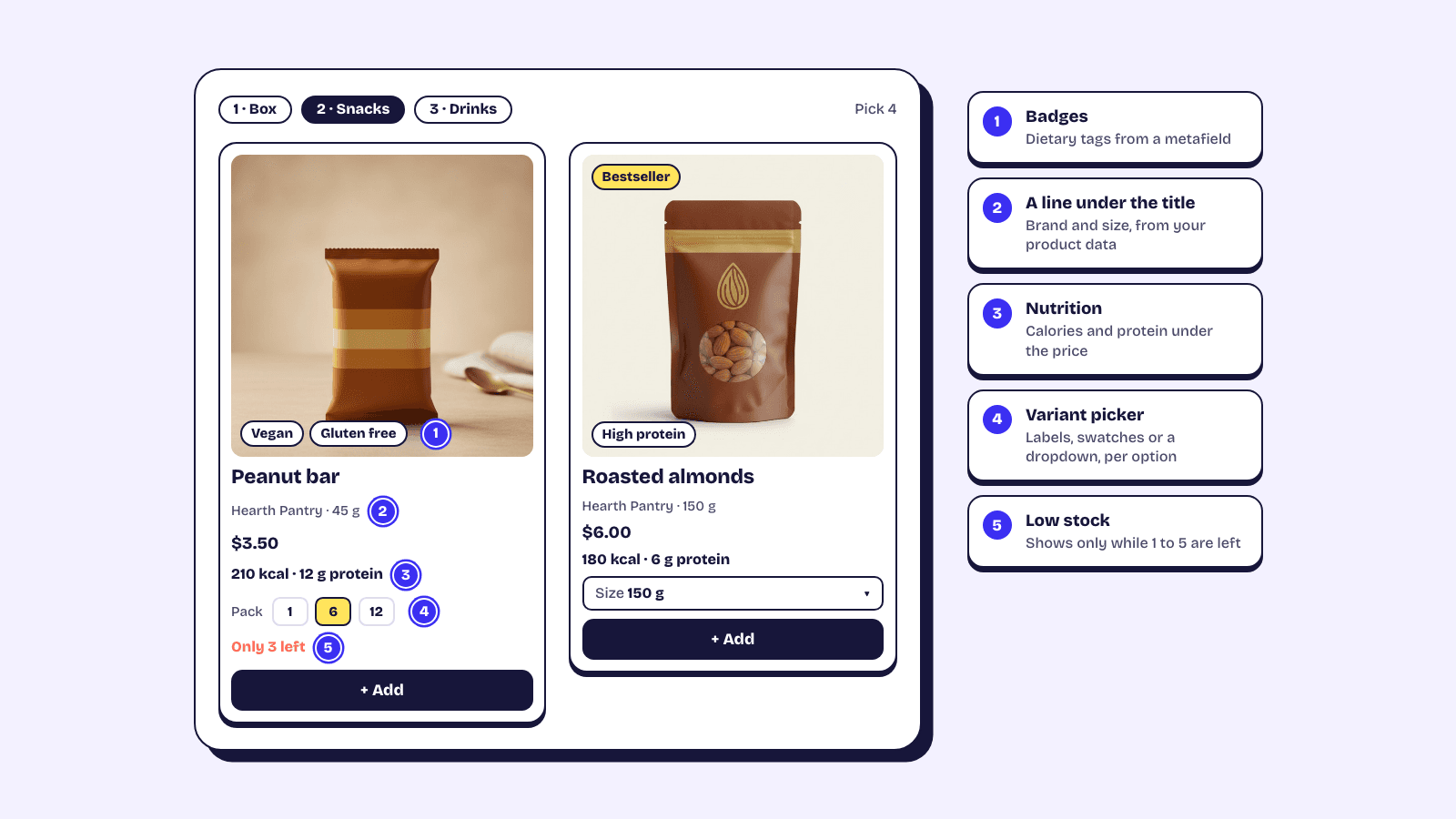
To show metafields on product cards in a Shopify bundle, you need two things: a product metafield definition with storefront access turned on, and a bundle builder that reads it. Elite Bundle Builder does the second part in the editor's live preview: click a spot on a product card, pick the metafield, and it shows as a badge on the image, a line under the price, or a short text block. This post covers the setup end to end, the metafield types that work, and why a field might show nothing.
Why product cards need more than a title and price
A bundle card is small and the shopper is choosing between a dozen of them at once. For a snack box, the deciding fact is often "is this vegan" or "how much protein". For a skincare routine it is the skin type. For a fashion set it is the fabric or the care instruction. None of that fits in a product title, and a shopper who has to open each product to find it will stop after the third one.
Shopify already has a home for this data: product metafields. If you have filled in calories, allergens or materials for your product pages, the values exist and just need surfacing on the card. If you have not, the setup below takes ten minutes for the definition and then a value per product. New to them? Start with how Shopify metafields work.
Step 1: create the metafield definition with storefront access
In Shopify admin, go to Settings, then Metafields and metaobjects, then Products, and add a definition. Give it a clear name (Dietary tags, Calories, Care instructions), pick a type, and save. The type matters for the next step, so the list of supported types is below.
Then open the definition and turn on Storefront access. This is the step people miss. A metafield without storefront access is invisible to anything that reads product data through Shopify's Storefront API, including the bundle page. Your Liquid theme can still read it. The rule is in Shopify's documentation on metafields in the Storefront API.
The editor helps here. Elite's Metafield picker marks a definition that is not exposed yet as "(no Storefront access)", and a line that uses it shows a note until you turn access on. If a card is blank, this is the first thing to check.
Step 2: fill in the values on each product
Open each product in Shopify admin and scroll to the Metafields section at the bottom. Enter the value as you want it to appear. The card shows the value as stored, so "320 kcal" in the metafield becomes "320 kcal" on the card. A bare "320" shows as "320", unless you type the unit next to it in Elite in step 3.
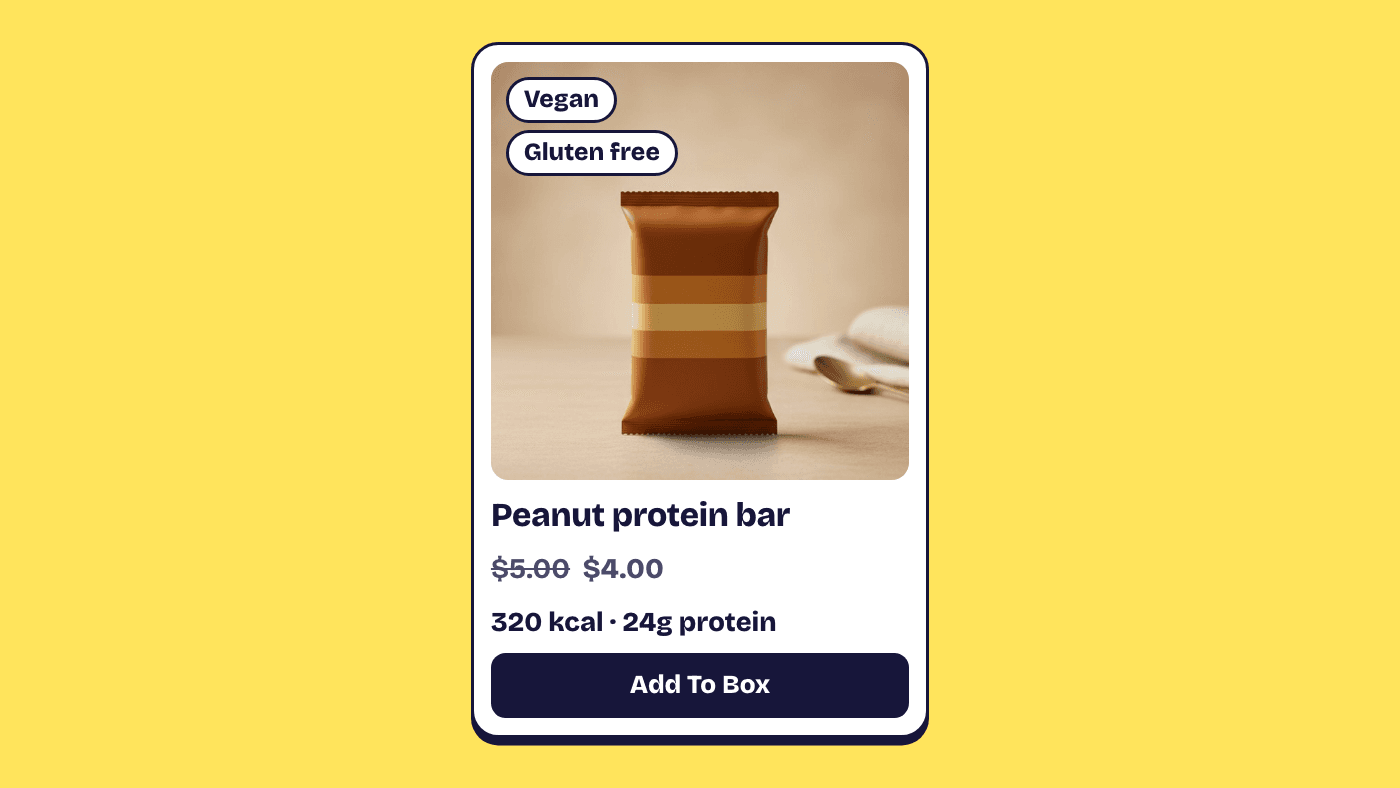
For a list type, add each entry separately. "Vegan" and "Gluten free" as two entries in a list of single-line text will become two badges on the card. Products with no value simply show nothing for that line, so you can fill the catalogue gradually.
If you have many products, Shopify's bulk editor is faster than opening each one.
Step 3: click a spot on the card in Elite's preview
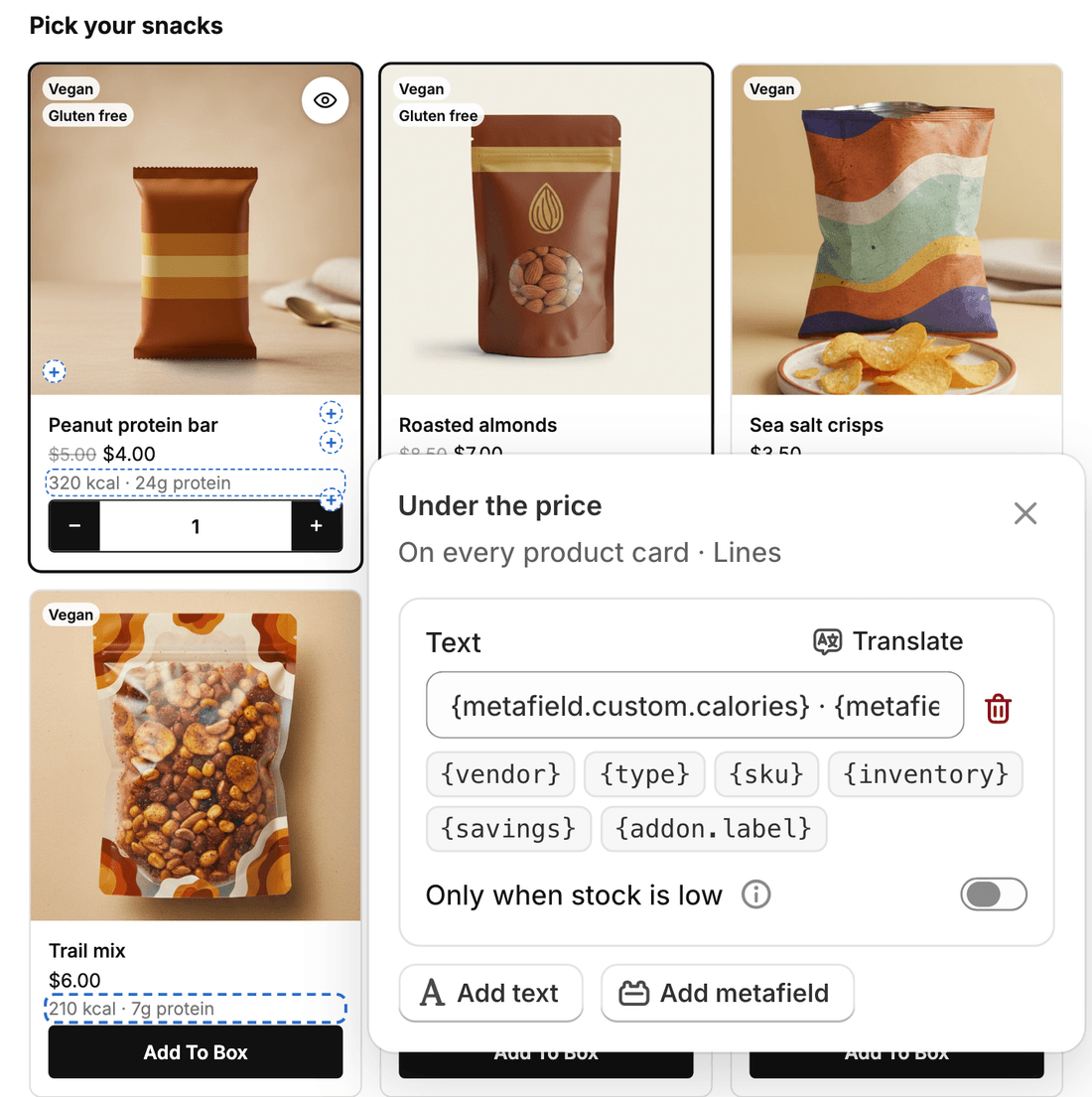
Open the bundle in the editor and hover a product card in the live preview. A small + appears at each empty spot on the card; a spot that already has data shows the real values, and hovering it outlines it with its name. Click a spot, or focus it and press Enter, and a popover opens beside it with the spot's name and where it applies, such as "On every product card · Lines".
In the popover, choose Add metafield and pick your field, and the spot shows its value. To put words around it, choose Add text instead and type the line with variables: {vendor}, {sku} or {inventory} for product data, and {metafield.custom.calories} kcal for a bare number, which reads "320 kcal". A spot holds up to three lines, the preview updates as you type, and the X button, Esc or a click outside closes the popover.
The spots that suit metafields best are:
Badges in the image corners. Small badges in the top-left or bottom-left corner of the product image, one per value. Best for short labels a shopper scans in a second: Vegan, New, Spicy, Organic. A list metafield becomes one badge per entry. A grid card shows up to two per corner and a list-layout thumbnail one, with any more folded into "+N".
Under the price. Short lines, one per text. Put two values in one text with a dot between them, {metafield.custom.calories} · {metafield.custom.protein}, and it reads "320 kcal · 24g protein"; each part hides on its own, so a product with no protein value still shows its calories. Best for numbers.
Notes under the price. A short text block under the price line, a paragraph per line, with line breaks kept. Best for care instructions, a one-line description or an ingredient note.
Add lines until the card looks right in the live preview. A line with nothing to show on a product still appears in the preview, faded, so you can see which products still need a value. A couple of badges and one line under the price is the combination that reads best; a text block on every card makes the grid tall and slow to scan. Quick view has spots of its own (switch the preview to Quick view with the switch above it), so a longer text block can live there and the card can stay short. The full reference is in the product data guide.
Step 4: save and check the storefront
Save from the editor's save bar, then open the bundle page on your store. The live preview uses the same components as the storefront, so what you saw in the editor is what shoppers get. Check one product with values and one without, and check a phone width, because badges over a small image are the first thing to get cramped.
Which metafield types work on cards
The Metafield picker in Elite lists every type below, and lists of any of them, and each shows its own way:
- Single-line and multi-line text, integer, decimal and URL: the value as stored
- True or false: the words around it show only while it's true, so
Vegan {metafield.custom.vegan}makes a "Vegan" badge on vegan products only - Rating: stars, which is how review stars from Judge.me show
- Colour: a dot in that colour
- Date, date and time: in the shopper's language
- Money: the amount in its own currency
- Weight, volume and dimension: the value with its unit, like "250 g"
- Rich text: its words, as one paragraph
- File: the image, as a small icon, such as an organic or vegan certification mark
A list shows one entry per value, which is what makes badges from a list of tags work.
Types that do not appear in the picker: JSON, and references to products, metaobjects or other resources. If your allergen data is in a metaobject reference, the quickest route is a second definition of type list of single-line text that holds the plain names, filled in alongside.
My advice on types: use list of single-line text for anything that is a label, and single-line text for anything that is a number with a unit. A decimal type looks tidy in admin but you then cannot store "24g", so the unit has to go in the line text in Elite, as in {metafield.custom.protein}g protein, and anywhere else you show the value.
Why a metafield shows nothing on the card
There are three causes, in order of how often they happen:
- The definition does not have Storefront access turned on. Open it in Settings, Metafields and metaobjects, Products and switch it on. Until you do, the Metafield picker marks it "(no Storefront access)" and the line shows a note.
- The metafield is unstructured. Metafields created by other apps without a definition do not appear in the Metafield picker at all. On the same Metafields and metaobjects page choose View unstructured metafields, then Add definition for the one you want, then enable Storefront access. The field then appears in Elite.
- The product simply has no value. Nothing is wrong; fill it in.
One more thing to rule out: a part of a line hides on a product where its data is empty. Parts are split by a separator such as " · ", a comma, or the space between two variables, so {vendor} · {metafield.custom.calories} shows just the calories on a product without a vendor, while Made by {vendor} with {metafield.custom.calories} is one part and shows nothing there. Put a separator between data that does not always come together.
If the field is in the picker, has storefront access and the product has a value, and it still shows nothing, contact support from the app. That is the whole checklist.
Where this helps most
Food and drink stores get the most from it: calories, protein and dietary tags on a snack box or meal kit builder do the work a product page used to do. Beauty stores use skin type and key ingredient badges. Fashion and homeware use fabric, care and origin as a text block. Every one of these is a build your own bundle with the same four-step setup, and the features page lists the other card controls that sit beside it.
Frequently asked questions
Can I show metafields on product cards without a bundle app?
Only if your theme has been customised to read them, which usually means editing Liquid in the product card snippet. Inside a bundle page the cards are rendered by the bundle app, so the theme edit would not apply there anyway. Elite reads the metafield directly once the definition has storefront access.
Do list metafields show as separate badges?
Yes. A list of single-line text with "Vegan" and "Gluten free" as two entries becomes two badges over the image. Add each tag as its own list entry rather than one comma-separated value, or you get a single long badge.
Do the metafield values also show in the quick view?
Only where you add them. Quick view has spots of its own: switch the editor preview to Quick view with the switch above it, click a spot such as Under the description, and pick the same metafields. A shopper who opens the modal then sees the tags and numbers next to the gallery and description, and it is the place for a longer text block that would crowd the card. Shoppers see these spots only when the Quick view button is on in Design, then Steps, or the bundle has product add-ons; the popover tells you when they are off.
Every slot, variable and example is on the product data page. Product data on cards is included in the free plan with everything else. See the pricing page or install Elite Bundle Builder from the Shopify App Store.