Blog /
Shopify metafields explained for store owners
Shopify metafields step by step: pick a type, create the definition, add values and show them in your theme. Then check the pitfalls before you launch.
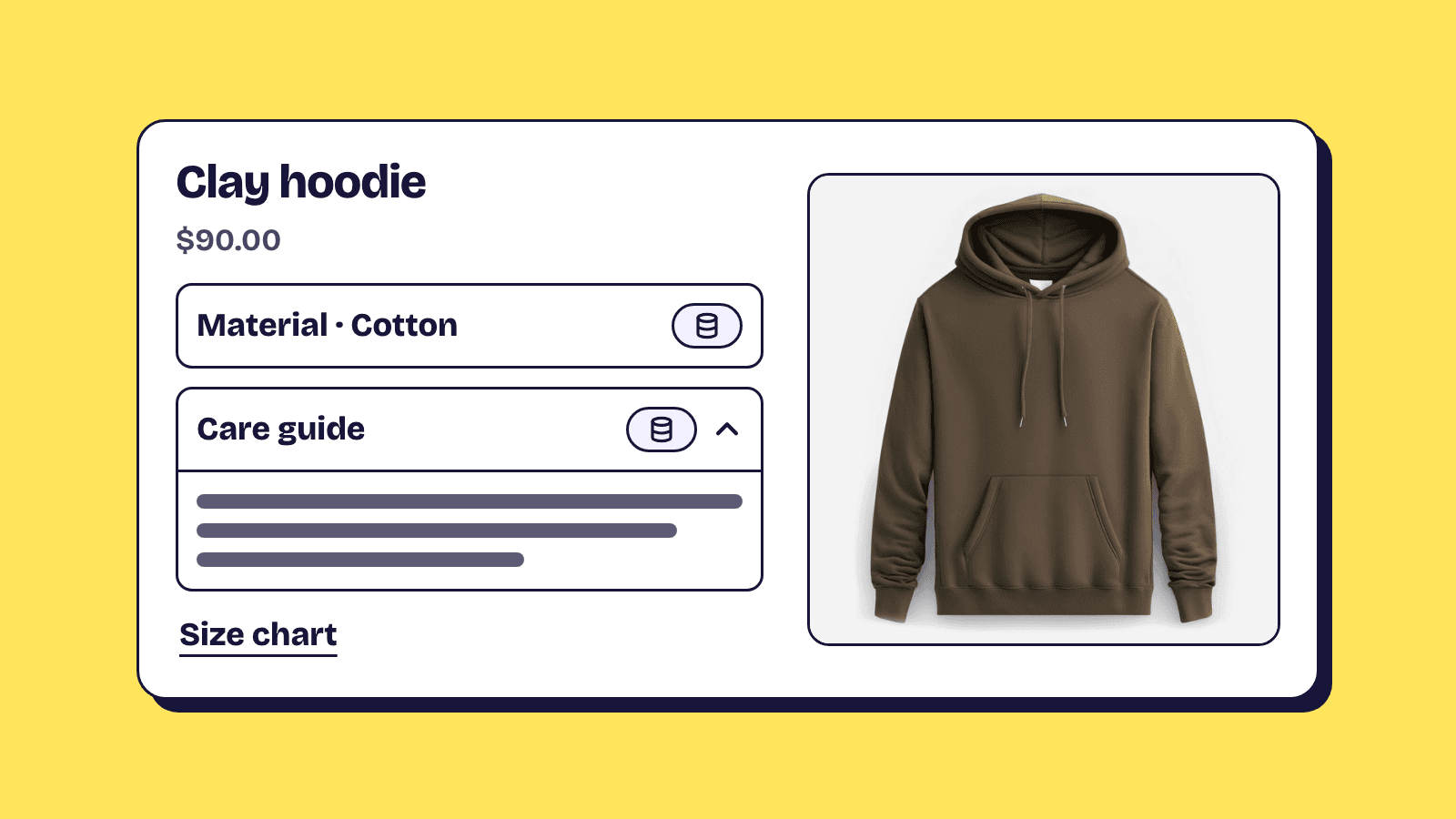
Shopify metafields are custom fields for the facts Shopify has no built-in box for: care instructions, ingredients, a size chart, a candle's burn time. They attach to products, variants, collections, customers, orders and more, and if your theme supports dynamic sources you can show them on the storefront without code.
The setup is three moves: create a definition, fill in a value on each product, connect the field in the theme editor. The steps below follow Shopify's help center as of October 2026.
A metafield is a definition plus a value
Every metafield has an identifier (a namespace and key, such as custom.burn_time), a type that decides what it accepts, and a value you enter per product.
The definition holds the name, the type and any rules, and applies to every product. Create an Ingredients definition with the multi-line text type, and every product gets an Ingredients field that only takes multi-line text. You can have up to 256 metafield definitions for each resource type, such as products or customers.
Shopify also ships standard definitions, such as Care guide and Product rating, and recommends one whenever it fits, because themes and apps already know where to look. The list of standard definitions asks reviews apps to write their average to Product rating, for example, so your theme and other apps read the same stars.
Choose the type before you create the definition
The type is the choice that matters most. Switch a definition between incompatible types later and the existing values become invalid until you fix them (metafield data types). The types most stores use:
| Type | Good for | Worth knowing |
|---|---|---|
| Single line text | A material, a dietary tag | Can be limited to preset choices |
| Multi-line text | Care instructions, ingredients | Allows line breaks |
| Rich text | Copy with headings and lists | Connects only to rich text settings |
| Integer, Decimal | Calories, burn time in hours | Numbers only, no unit |
| Weight, Volume, Dimension | Net weight, bottle size | Stores the unit with the number |
| True or false | A yes or no flag | A checkbox in admin |
| File | A spec sheet, an image | Images, videos and other files |
| Page, Product, Metaobject | Pointing at other content | References |
Then choose One value or List of values. A list holds up to 128 entries, or 1,024 for metaobject references (metafield limits), which suits tags such as Vegan, Gluten free and Nut free. True or false, multi-line text, rich text, money and JSON cannot be lists.
Our view: when a field has a known set of answers, use single line text with preset choices. Free typing gives you "Hand wash" on one product and "hand-wash" on the next, and every filter and app that reads them sees two different values.
Create a definition in Settings, Metafields and metaobjects
Shopify's steps for adding a definition start the same way for standard and custom fields:
- In Shopify admin, go to Settings, then Metafields and metaobjects. Some guides, a few of Shopify's own included, still call this page Custom data.
- Choose the part of your store, such as Products, and click Add definition.
- Type a name. If a standard definition matches, Shopify suggests it as a pill.
- For a custom field, check the namespace and key generated from the name, click Select type and pick one. Click One value to switch to List of values.
- Optional: add a description and validation rules, such as a character limit or preset choices.
- Decide on Storefronts access (covered below) and, for product and variant fields, whether smart collections can use it.
- Click Save.
The namespace and key are the address themes and apps use to find the field, so pick a clear one.
Fill in values one product at a time or in bulk
Open a product, go to its Metafields section, click the row for your field, enter the value and click Save. Shopify's guide to adding values to metafields notes that only pinned definitions appear on the product's admin page automatically. New definitions are pinned by default; if a field is missing, click View all.
For a whole catalogue, use the bulk editor. On Products, select the products, click Edit products, then Columns, tick your metafields under Metafields, and type values into the table. Save, fix anything it flags, and save again.
A product with no value has an empty field, and how an empty block renders depends on the theme, so preview one before you publish.
Show metafields in your theme with dynamic sources
On an Online Store 2.0 theme, the theme editor can connect a metafield to a section or block setting. Shopify calls this a dynamic source: the setting reads its value from the product being viewed, so one template shows each product's own care guide. Vintage themes do not support dynamic sources (theme architecture versions). To check yours, open the theme editor on Products, Default product and look for an Add section button under the sections.
Shopify's care instructions tutorial shows the pattern:
- In Shopify admin, go to Online Store and click Edit theme next to your theme.
- In the drop-down at the top, select Products, then Default product.
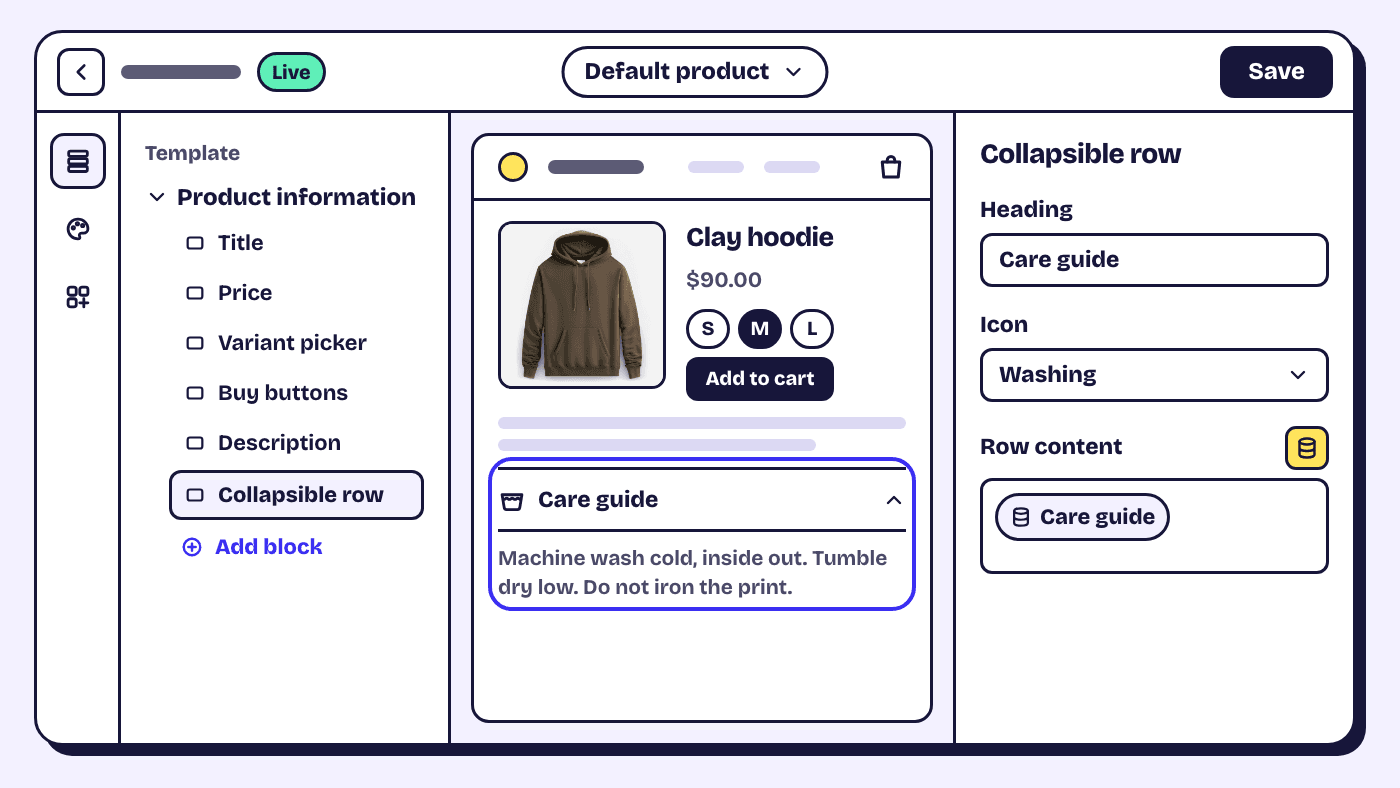
- In the Product information section, click Add block, then Collapsible row, and give it a heading.
- Next to Row content, click the Connect dynamic source icon and select Care guide.
- Click Save.
Block names differ between themes; look for the small database icon next to a setting. Shopify's size chart tutorial does the same with a Page metafield: each product points at a size chart page, and a Pop-up block's Page setting reads the field, so tops and trousers open different charts from one template.
Otherwise, a developer can print the value with Liquid. One limit: a dynamic source reads from the resource its section belongs to (dynamic sources reference). On a collection page that is the collection, so a product's metafield reaches collection grid cards only if your theme builds cards from blocks tied to each product, or someone edits the card's code.
Storefront access is for apps and headless stores, not your theme
The Storefronts option in a definition's Access section decides whether the value can be read through Shopify's Storefront API. Your Liquid theme is not affected: Shopify's docs on metafield permissions say metafields are always available in Liquid, whatever this setting says.
It matters for headless storefronts and for apps that load product data in the shopper's browser through that API. Custom definitions start with Storefronts off; standard ones start with it on. So if a value shows on your product page but is blank inside an app's widget, check Storefronts first. A bundle builder that draws its own product cards is a typical case, and showing metafields on bundle product cards walks through it in Elite Bundle Builder, which needs this access on.
Metaobjects hold several fields as one entry
When one value is not enough, use a metaobject: a content type of your own with several fields, such as a size chart or a nutrition panel with calories, fat, carbohydrate and protein. You create the definition and add entries in Content, then Metaobjects, and point products at an entry with a Metaobject reference metafield (metaobjects in Shopify Help). Twenty products can share one size chart, and theme settings can read its fields as dynamic sources when the types match.
Common uses, and the type that fits each
Size guides
A Page reference in a Pop-up block, as above, is the quickest route; for measurements you can reuse as data, use a metaobject entry per chart.
Care instructions
Use the standard Care guide definition: multi-line text up to 500 characters, made for apparel themes to show on product pages, usually in a collapsible row.
Ingredients and allergens
Ingredients fit multi-line text in a collapsible row. Allergens and dietary tags work best as a list of single line text with preset choices, which can also drive a storefront filter.
Nutrition
Use Integer or Decimal for each number, or Weight to store grams with the value; a full panel reads better as a metaobject. For food boxes, the snack box builder setup guide shows dietary tags as badges on each product card while the shopper picks.
Five metafield mistakes and the fix for each
The field is missing from the dynamic source list
The picker only offers fields whose type matches the setting. In Shopify's compatibility table, a plain Text setting takes single line text, numbers, dates, ratings, money, weight, volume and dimension, but not multi-line text, which needs a rich text setting. True or false has no text setting, so for a visible label use a list of tags. Measurement types such as Energy are missing from the table too, so test one in your theme first.
Old app data has no definition
Metafields without a definition, often written by an app or a migration, show as unstructured. In Settings, Metafields and metaobjects, choose Products, then View unstructured metafields (under More actions in some stores), and click Add definition next to the namespace and key (migrating metafields).
A unit typed into a number field
A Decimal field cannot store "24g". Store the number and write the unit in the block's text, or use Weight. If you switch the type later, Shopify's guide to fixing validation errors shows how to correct values in the bulk editor.
Deleting a field your theme still uses
Deleting is permanent, and a deleted field still connected to a block can cause display errors for customers. Disconnect it in the theme editor first, then choose Delete field only to keep the values or Delete field and its saved values (deleting metafields).
Using a metafield for what the shopper types
Metafields hold store data you set. Text a shopper enters, such as an engraving or a gift note, is a line item property, usually captured from an input in the product form and kept on that order line (line item properties). For an example of shopper input reaching the packer, see how to add a gift message to a bundle.
Frequently asked questions
Do I need an app to use Shopify metafields?
No. Definitions, values and theme connections all live in Shopify admin and the theme editor. You need a developer only when your theme does not support dynamic sources, or the setting you want cannot take the field's type.
Can I filter products by a metafield?
Yes, with Shopify's Search & Discovery app. It filters on product and variant metafields of type single line text, integer, decimal, true or false and metaobject reference, and your theme must support filters for shoppers to see them. Metafields can also set a smart collection's conditions, such as every product whose Material is Linen.
What is the difference between a metafield and a metaobject?
A metafield adds one field to something that already exists, such as a product. A metaobject is a new kind of entry with several fields, such as a size chart, which products point at through a reference metafield.
Do shoppers see every metafield I create?
No. A metafield shows on the storefront only where you connect it in the theme editor, print it in theme code, or an app displays it. But anyone using your Storefront API can read a field with Storefronts access on, so keep supplier costs and private notes in fields where it is off.