Blog / · Updated
Shopify gift box builder set up step by step
Set up a Shopify gift box builder with box sizes, content steps, a gift message and To & From, a free card, holiday timing and design tips. Free app.
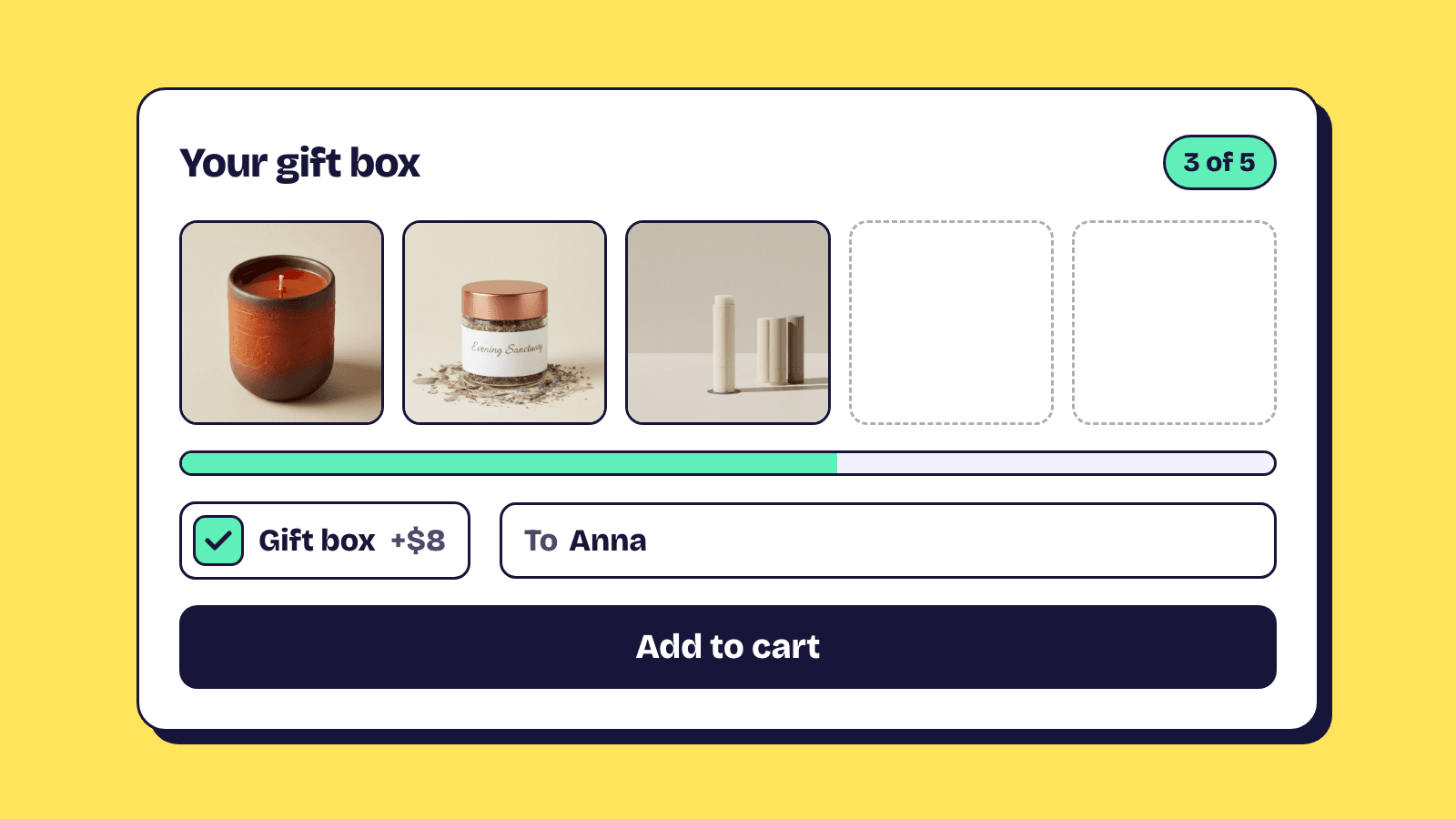
A Shopify gift box builder is a page where the shopper picks a box size, fills it with products from your catalogue, writes a gift message, and buys the whole thing as one item. This guide sets one up in Elite Bundle Builder, which is free, using a build your own bundle with the Box discount display.
The flow you will end up with: the shopper chooses a 3, 5 or 8 item box, works through one or two content steps, writes a message with To and From names, and checks out with the box price applied automatically. The steps below are in the order you do them in the editor.
Start with the box sizes, because everything else depends on them
Decide the sizes before you touch the editor. Three sizes is the usual sweet spot: a small box for a first gift, a medium one that most people buy, and a large one for the occasions where price is not the question. Fewer than two and it is not a box choice; more than four and the shopper is comparing boxes instead of filling one.
The sizes become discount tiers by item count. In the Offer tab, turn on Enable discount, set Discount triggered by to Quantity of items, and add one tier per size, for example 3 items for 10% off, 5 items for 15% off, 8 items for 20% off. Percentage off is the safe choice when the contents vary in price. A fixed target price per box ("the 5 box is $60") reads better on a banner, but only use it when everything in the box sits in a narrow price band, or the most expensive combination will cost you. The bundle discount guide works through the arithmetic for each type.
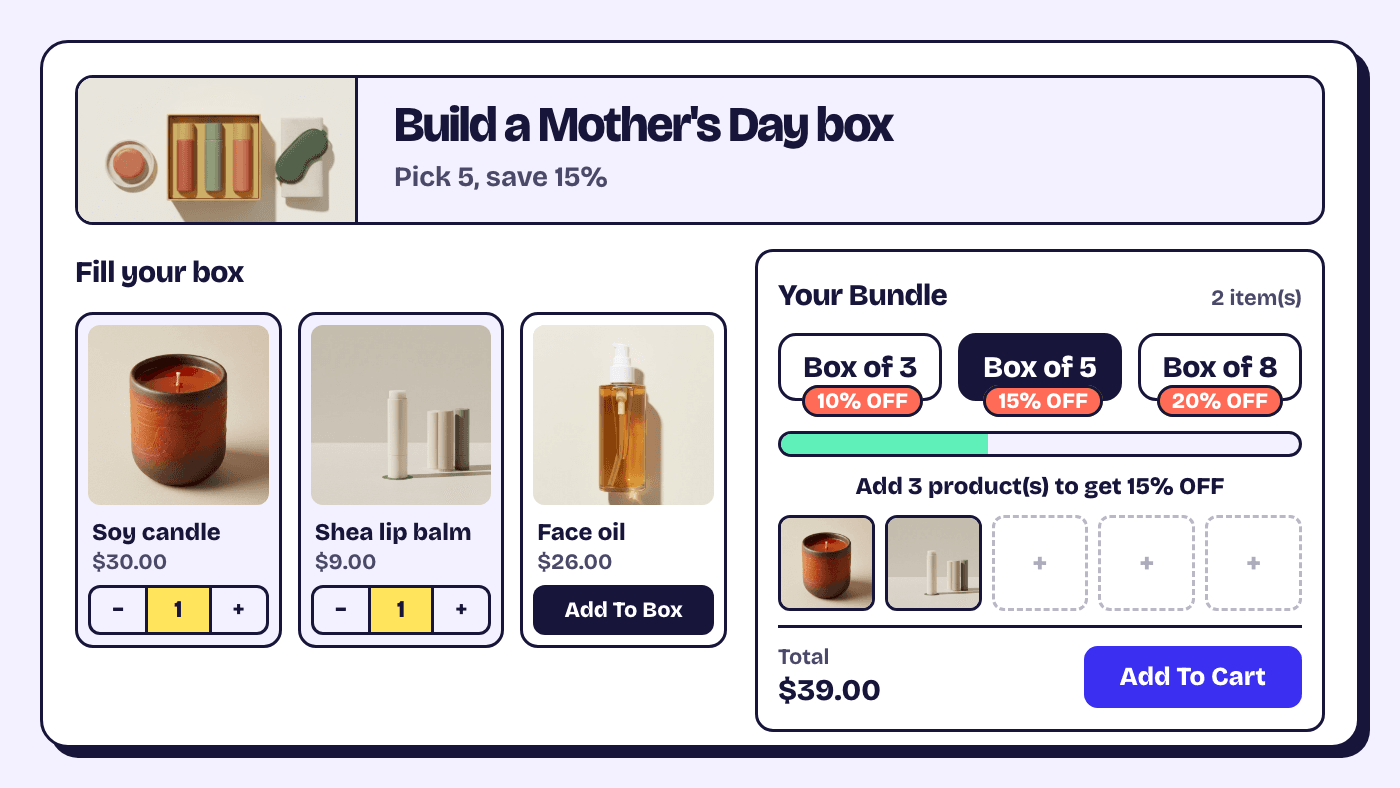
Then open Design, Discount display and set the style to Box. Box is only offered when tiers are by item count. The shopper sees one button per size, picks one, and the cart cannot hold more than that box. If they switch to a smaller box, the last-added items are dropped. Set Label placement to overlay or inside so each box shows its discount, and turn on the progress bar beneath the boxes so the shopper can see how full their box is.
Add the content steps in the Build tab
Keep the content to one or two steps. A gift is a mood, not a checklist, and every extra step is a place to give up.
A single step works for a curated catalogue: "Fill your box" sourced from a Gift collection, so new items appear when you add them to the collection. Two steps work when the box has a structure the shopper should follow, such as "Choose your treats" and "Choose your keepsakes".
In Config, Rules, Per step, set each content step's limit to a number of items with a minimum of 1 and the maximum to your largest box size. The box the shopper picked already caps the total, so the per-step limits only need to stop an empty step. Turn on One of each product only if the box is about variety; leave it off if someone might want two of the same chocolate bar. Turn on Stop at the top discount tier on the Whole bundle tab so every add button locks once the largest box is full. If you sell by budget rather than by size, set the bundle limit on that tab to Amount spent instead, with a maximum such as $75, and the shopper fills the box up to a price.
The build your own bundle docs cover every rule on that page.
Ask for the gift message, then add a free card
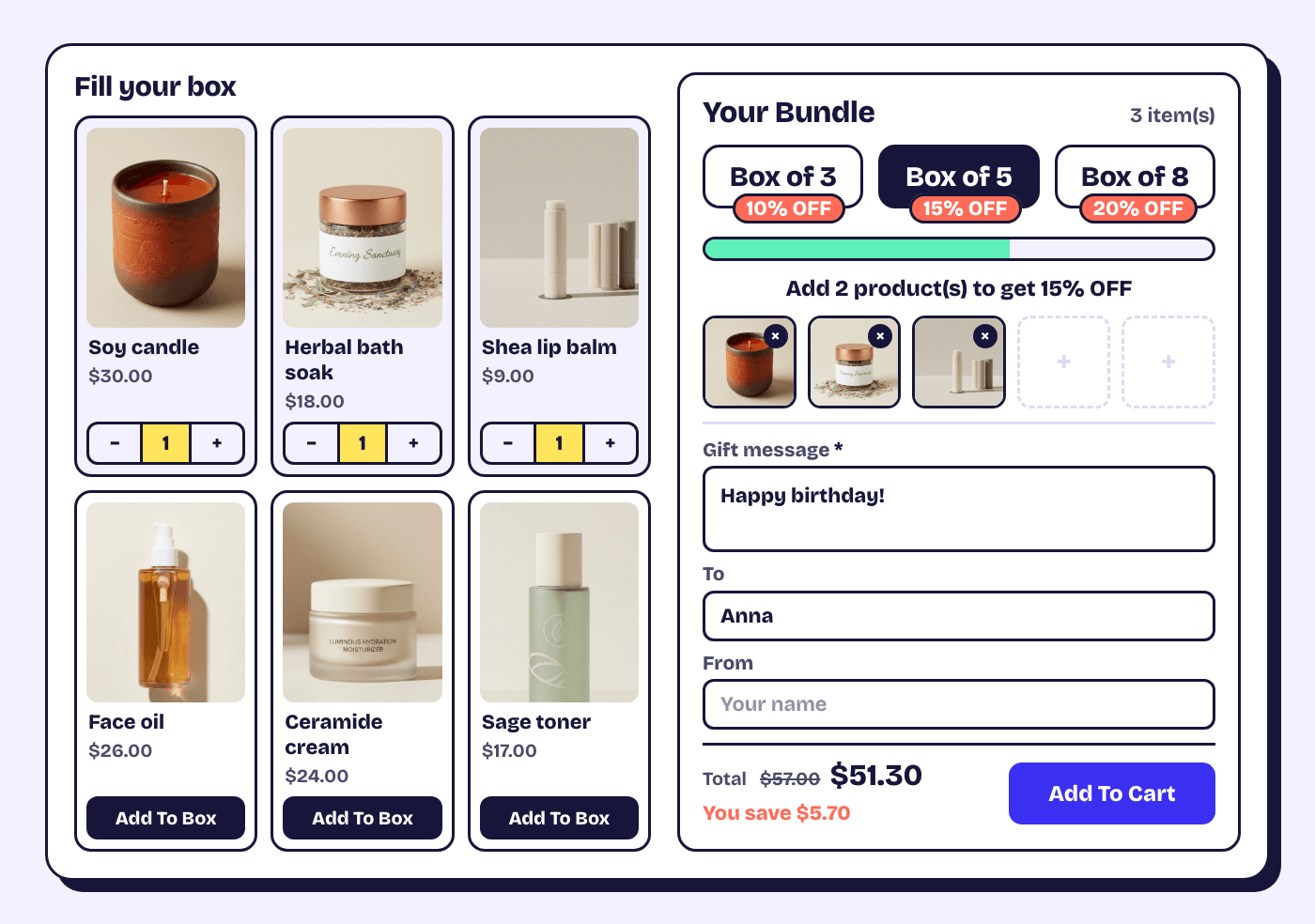
The message itself is a bundle add-on, filled in once for the whole box. In Offer, Add-ons, stay on the Bundle add-ons tab and pick the Gift message card, then To & From. Each is added with its label and placeholder filled in; open one to make it required or change the character limit (200 for the message is plenty for a card). If you ship on a set day, add the Delivery date card too: shoppers pick it from a calendar with no past days.
Where to show, at the top of the list, decides where the shopper fills them in. In the bundle cart puts the fields above Add to cart, beside the box. In a last step adds a "Your details" step after the content steps, which reads well on a gift page because the message comes once the box is full. Either way, a required field that is empty stops Add to cart and points the shopper to it. The answers land on the bundle's line in the order ("To: Anna", "Gift message: Happy birthday!"), so whoever packs the box writes the right card. The gift message guide covers each setting.
Want the card itself to be a choice? Create a Shopify product for it (a $0 "gift message card" with one variant per design if you offer several), add a final step called "Choose your card" with that product, and turn on Mark this step as a free gift in that step with a label such as "Free card". Turning it on sets the step limit to one item, optional. At checkout the card sits on its own line at $0, never takes a slot in the box and never counts toward a discount tier. To offer it only once the box is full, set Show this step to the content step with a number of items that matches your smallest box. A Gift box add-on (a tick box, free or with a price) works the same way for premium packaging.
Design the page so it feels like a gift, not a catalogue
Four settings do most of the work.
Banner. In Design, Banner, use the Split or Full background style with a photo of a filled box, a heading that names the occasion ("Build a Mother's Day box") and a subheading that states the offer in one line ("Pick 5, save 15%"). Upload a separate mobile image; a wide banner cropped to a phone loses the box.
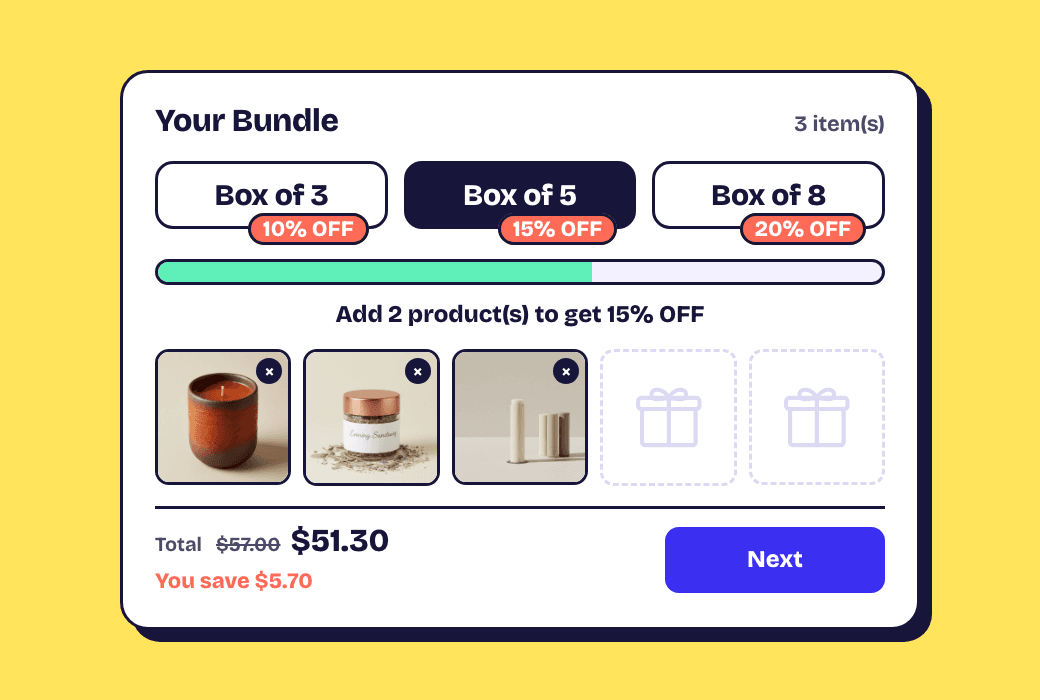
Slots cart. In Design, Bundle cart, set Item style to Slots. Empty squares that fill as the shopper adds items are the closest thing on a screen to packing a real box, and the count toward the target is visible without reading anything. Add a Slot image from Shopify Files, such as a faint outline of your box or tissue paper, and turn on Show savings so the running discount is visible.
Product data. Hover a product card in the preview and click the + in the image's top-left corner to add a badge such as "Handmade" from a metafield, or add a line under the title, Only {inventory} left, set to show only when stock is low. In the cart, add a line under the items ("Free gift wrapping on every box") or above the cart button (Add {remaining} more for {next}), which updates as the box fills. The product data docs list every spot.
Branding. In Design, Branding, set the primary colour, background and corner radius to match the packaging rather than the rest of the site. Gift pages get shared, and a page that looks like the box it produces is easier to send to someone. The design and customize docs list every token.
Check the preview at mobile width before saving. A lot of gift buying happens on a phone in the evening, and the cart drawer should not cover the box buttons.
Time it for the holiday, and reuse it for the next one
Build the bundle weeks ahead with the status set to Unlisted. It is hidden from collections and search but opens by direct link, so you can test the full flow and share it with the team. Switch the status to Active on launch day and back to Draft when the season ends. The bundle keeps its steps, rules, discounts and design, so the Christmas box becomes the Valentine's box by changing the banner and the collection behind the content step. Keep one bundle per occasion if the sizes or discounts differ; keep one and swap the collection if only the contents change.
Our opinion after watching a lot of these launch: the box that sells is the medium one, so put its discount where it is easiest to see and make the small box a real option rather than a decoy. People notice.
Frequently asked questions
Can the shopper change box size after they start filling it?
Yes. Picking a larger box opens more slots. Picking a smaller box drops the last-added items to fit, and the cart shows the new selection straight away.
What does the free gift step do?
Everything picked in that step is free. The shopper sees your gift label on it in the bundle cart, and at checkout it is its own line at $0. It does not take a slot in the box or count toward a discount tier, and checkout frees at most the step's maximum, so set the step limit to the number of free items you give.
Where does the gift message show on the order?
On the bundle's line, under its name: "To: Anna", "From: Sam", "Gift message: Happy birthday!". It is in the cart and at checkout too, in your store's default language.
Can I run several gift box builders at once?
Yes, with no limit on the number of bundles. Each bundle has its own steps, sizes, discounts and design, so a $30 stocking box and a $150 corporate box can run side by side with different looks. The free plan on the pricing page has no bundle or order caps.
Ready to build one? Read the build your own bundle overview, borrow a structure from the mix and match examples, or install Elite Bundle Builder free.