Blog /
How to add a gift message to a Shopify bundle
Add a gift message, To & From and a delivery date to a Shopify bundle, filled in once per box and shown on the order line. Five steps, free app.
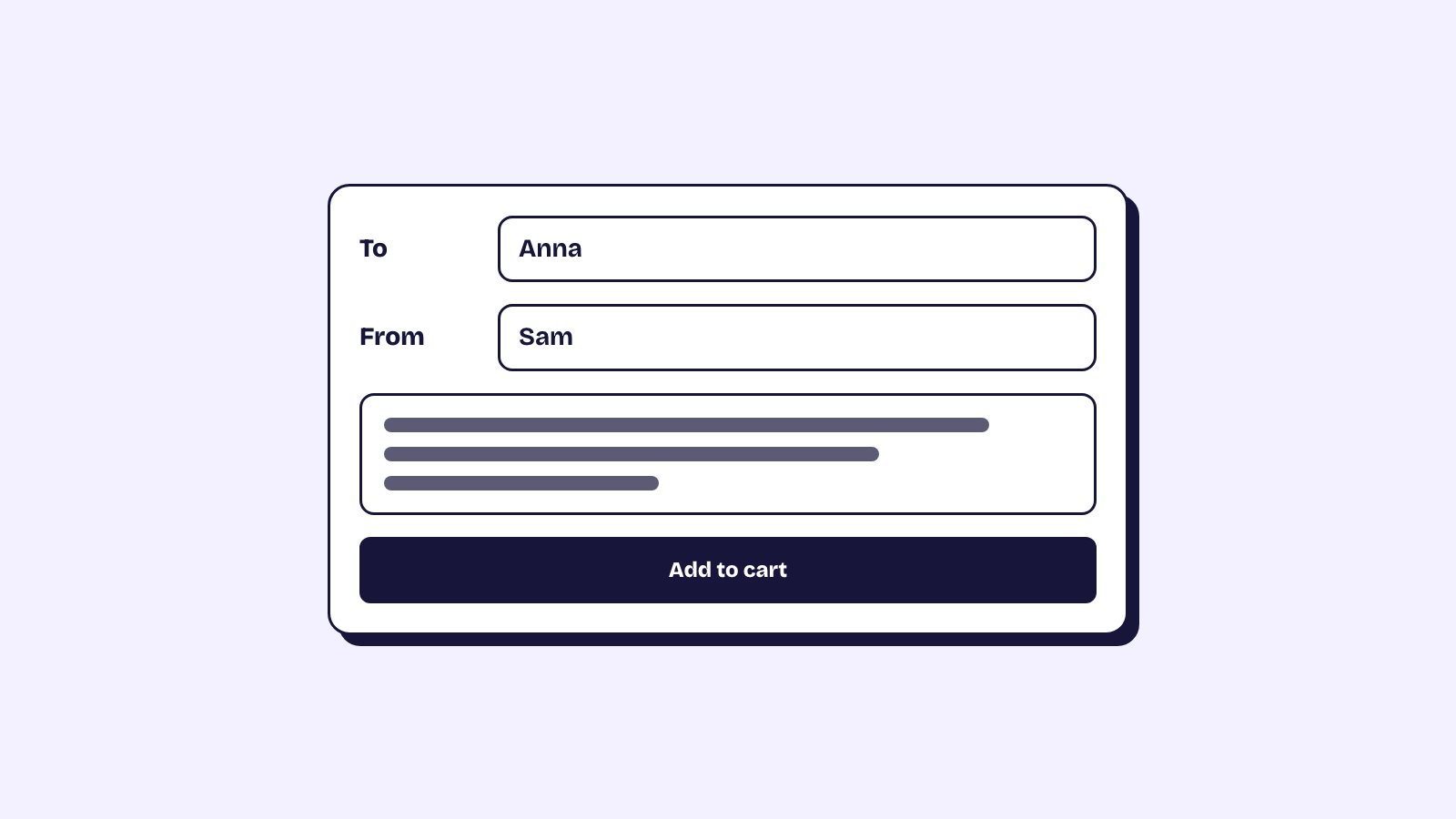
To add a gift message to a Shopify bundle, you need a field the shopper fills in once for the whole box, and a place on the order where whoever packs it can read it. Elite Bundle Builder does both with bundle add-ons: pick the Gift message card in Offer, Add-ons, and the answer lands on the bundle's line in the order. This guide sets up a gift message, To & From and a delivery date, chooses where shoppers fill them in, and shows what the order looks like.
Why the order note is the wrong place for a gift message
Shopify's cart note is one free text box for the whole order. Many themes hide it or leave it on the cart page, where a shopper who checks out from a side cart never sees it. And with two gift boxes in one order, nobody packing them knows which message goes in which box.
A bundle add-on belongs to the bundle, not the order. Each box in the cart carries its own message, the field sits next to the box the shopper is building, and you can make it required so a gift never ships without one.
Step 1: add the Gift message and To & From cards
Open the bundle in the editor and go to Offer, Add-ons. The page has two tabs; stay on Bundle add-ons, which holds everything filled in once for the whole bundle. An empty tab shows its ready-made cards: Gift message, To & From, Delivery date, Email, Gift box, Choice and Custom.
Pick Gift message. It is added straight away as a long text field labelled "Gift message", with the placeholder "Write a short note" and a 200 character limit, and its settings open so you can change any of it. Go back to the list, click Add a bundle add-on and pick To & From, which adds two short fields, To and From, with up to 40 characters each.
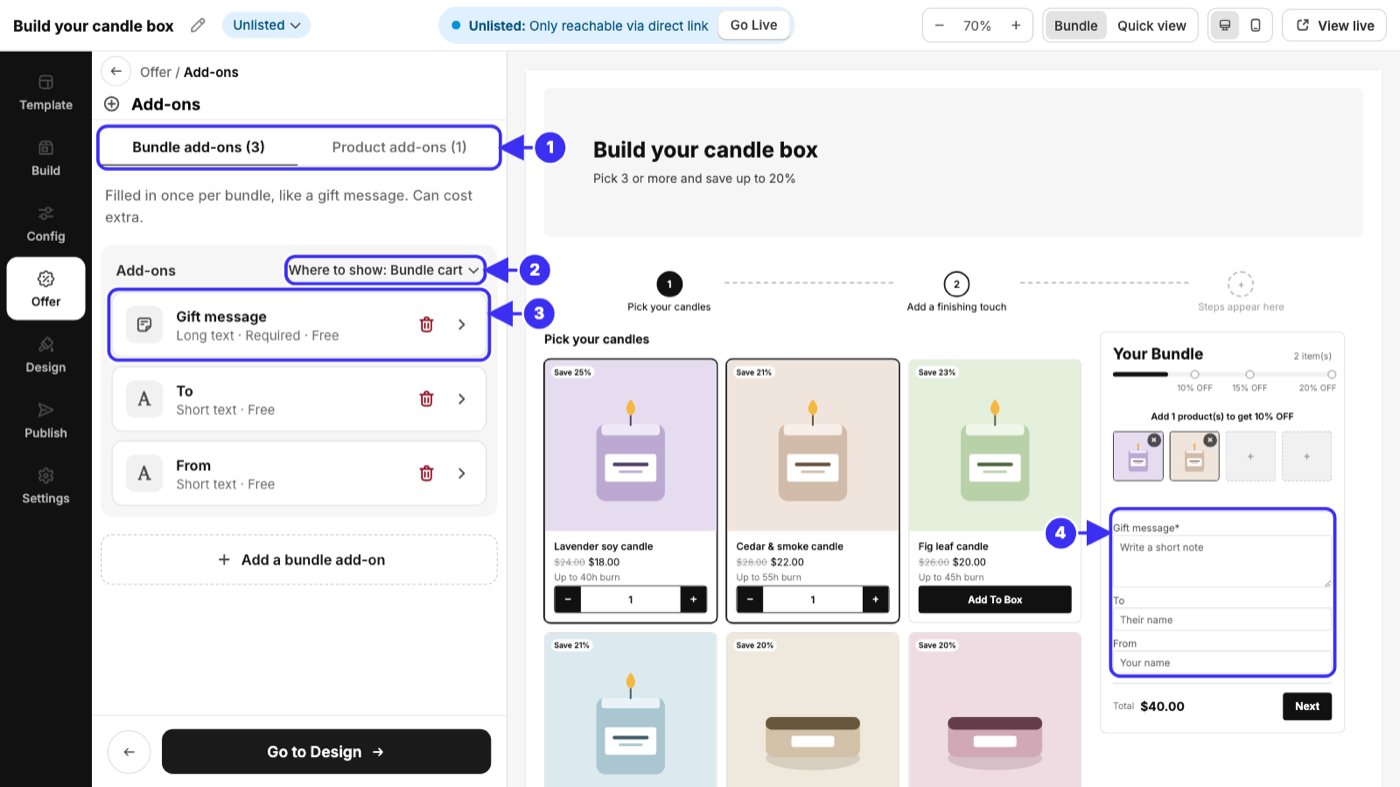
1. The Bundle add-ons and Product add-ons tabs. 2. Where to show. 3. An add-on in the list. 4. The add-ons in the bundle cart preview.
Step 2: decide what is required
Open an add-on and turn on Required when the box should not ship without it. When a required field is empty, Add to cart points the shopper to it with the browser's own message ("Please fill out this field"), opening the mobile cart panel or the last step first if that is where the field sits.
Our opinion: make To required and leave the message optional. Some shoppers buy a box for themselves, and a forced "Happy birthday!" on a box someone bought for their own kitchen is a small, avoidable annoyance. A name on the label is almost always wanted.
To ask only when it matters, set an add-on's Show to wait for another. A Gift card checkbox with a required Name on the card under it (Show: When Gift card is ticked) asks for a name only from shoppers who want the card; everyone else never sees the field. It works with any field above it: a text that is filled in, or a choice such as "Ribbon is Red".
Every label and placeholder has its own Translate button, so shoppers see the fields in their language.
Step 3: choose where shoppers fill them in
Where to show, at the top of the Bundle add-ons list, opens a small popover with two choices that apply to all of them.
In the bundle cart is the default. The fields sit above Add to cart, beside the shopper's picks, and on phones inside the cart panel that slides up. It suits short forms, a To and a From, where the shopper fills them in on the way to the button.
In a last step adds a step after the product steps, titled "Your details" (rename and translate it). It shows in the stepper or the tabs like any other step, and the cart's button moves to it. It suits gift pages, because the message comes once the box is full and the shopper has the whole page for it. With steps shown as Stacked, it is the last section of the page.
A product page widget (the Grid and List templates) has no steps, so it shows the fields in its cart drawer. On a multi-option bundle they sit just above your theme's Add to cart button.
Step 4: add a delivery date, an email or a choice
Three more cards cover most gift orders.
- Delivery date is picked from a calendar that starts at the shopper's today, so no past days.
- Email checks that the address looks like one. The app does not send anything to it; it is saved on the order for you, or your email app, to use.
- Choice shows buttons for one of a few options, such as a ribbon colour or a card design. Name each choice in its settings.
A Gift box card is there too: a tick box for premium packaging, which can carry a price charged once per bundle. Pricing is covered in the paid add-ons guide.
Step 5: check the preview, then place a test order
While you are on the Bundle add-ons tab, the editor preview shows the bundle with the fields where shoppers will see them. Type in them to see how a long message wraps. If you chose a last step, click Your details in the preview's steps to open it.
Save, keep the bundle Unlisted, and place a test order from the live page with each field filled in. Then open the order in Shopify admin and check the bundle's line.
What the order shows
The answers are on the bundle's line, under its name: "To: Anna", "From: Sam", "Gift message: Happy birthday!". They show in the cart, at checkout and on the order in Shopify admin, in your store's default language, so the packer reads the same labels whatever language the shopper used.
Each bundle carries its own answers. Two gift boxes in one cart are two bundle lines with two messages, and the fields start empty again after each add. If your checkout does not merge bundle lines (a third-party checkout with Use cart transform off, or a bundle bought on subscription), the answers show on the bundle's first item instead.
Frequently asked questions
Can each box in the cart have its own gift message?
Yes. The answers belong to the bundle, not the order, so two boxes in one cart are two lines with two messages. After a box is added, the fields are empty again for the next one.
Does a gift message cost extra?
Not unless you want it to. A bundle add-on is free by default; you can give it a fixed amount or a product's price, charged once per bundle and never discounted. The paid add-ons guide has the details.
Does it work on a multi-option bundle?
Yes. A multi-option bundle takes bundle add-ons, shown just above your theme's Add to cart button, and a required one that is missing stops the button and points the shopper to it.
Can my developers read the answers in a custom storefront?
Yes. The SDK reference documents bundleAddOns, details, setDetails and detailsComplete, and checkout refuses while a required answer is missing.
Building a gift box from scratch? The Shopify gift box builder guide covers box sizes, steps and design, the build your own bundle page shows everything else a bundle can do, and the app is free on the Shopify App Store.