Blog /
Paid add-ons for Shopify bundles, engraving to gift wrap
Charge for Shopify bundle add-ons such as engraving, gift wrap or a gift box: per item or once per bundle, never discounted, saved on the order. Free app.
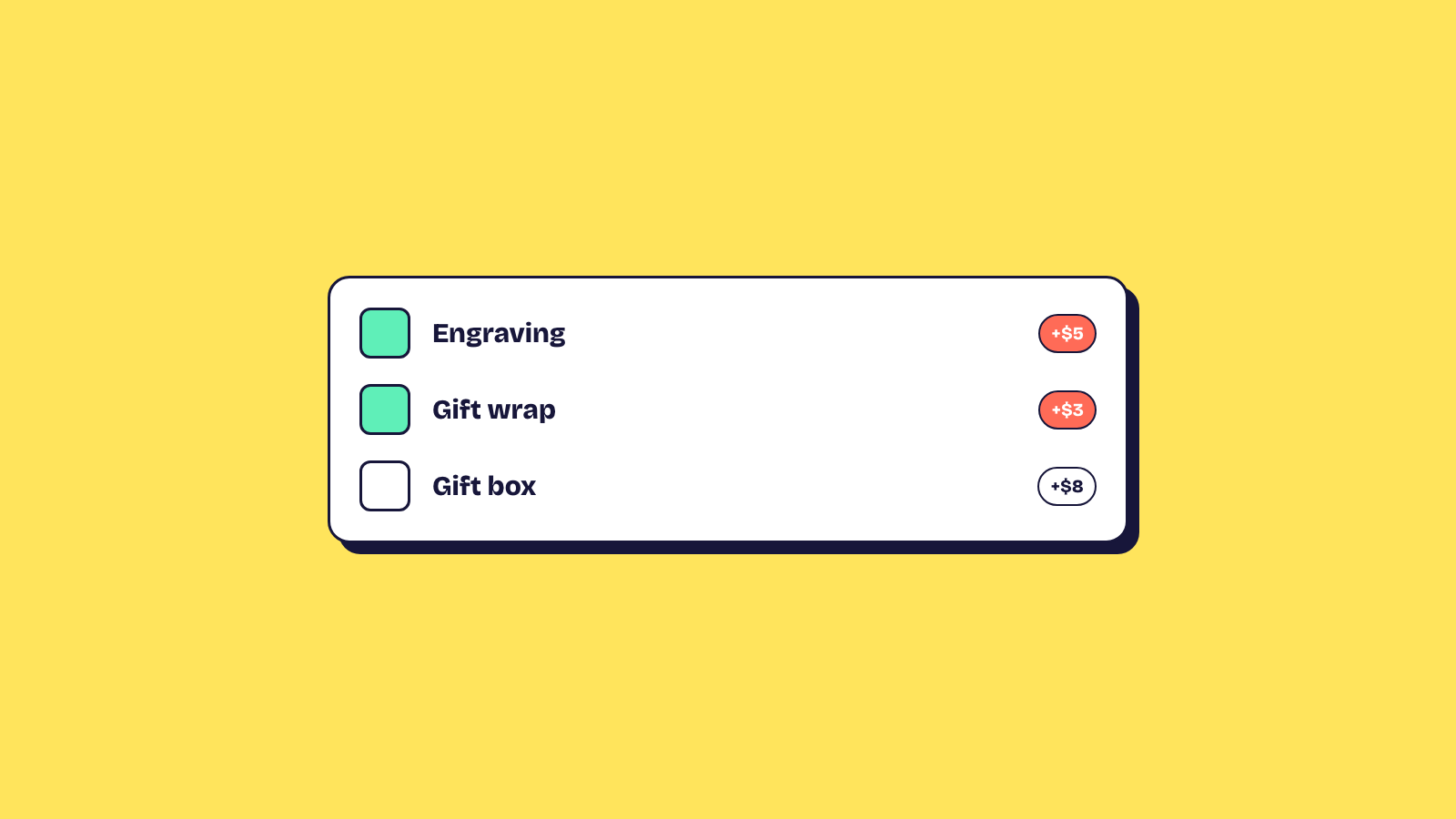
Shopify bundle add-ons are the extras a shopper adds on top of their picks: an engraving on a bracelet, gift wrap on a candle, a gift box for the whole set. In Elite Bundle Builder each one is free or has a price, charged per item for a product add-on and once per bundle for a bundle add-on, and the bundle discount never applies to it. This guide prices three common add-ons and shows what reaches checkout and the order.
Product add-ons and bundle add-ons
Offer, Add-ons has two tabs, and the tab you add an add-on in decides how it is charged.
| Product add-ons | Bundle add-ons | |
|---|---|---|
| Examples | Engraving, gift wrap, the shopper's own photo | Gift box, gift message, To & From, delivery date |
| Filled in | In each product's quick view | Once, in the bundle cart or a last step |
| Charged | Per item that takes it | Once per bundle |
| Saved on | That product's line in the order | The bundle's line in the order |
| Bundle types | Build your own | Build your own and multi-option |
Two bracelets engraved "Anna" and "Tom" are two items with two engraving charges. A gift box on a box of eight is one charge.
Three ways to price an add-on
Every add-on has a Price with three options.
Free. Nothing is added to the total. Right for a gift message, and for gift wrap when it is part of the offer.
A fixed amount. You type an amount in your store's currency. The app keeps one hidden, unlisted product called Bundle add-ons in your store, with a variant per charged add-on at the price you set, created on the first save that needs it. Leave that product alone: the next save of a bundle puts its variants back. Its sales in Shopify's reports show which add-ons earn the most.
A product's price. You pick one of your own products and a variant, such as a "Gift wrap" product. The shopper buys that product with the add-on: its price in every market and its stock, so when you run out of wrapping paper the add-on shows as sold out instead of selling what you cannot ship.
Our opinion: start with a fixed amount, and switch to a product's price only when you need the stock count or market prices. One less product to look after is worth a lot in December.
Set up a $5 engraving on some products
On the Product add-ons tab, click Add a product add-on and pick Engraving. It is added as a short text field labelled "Engraving", with the placeholder "Up to 20 letters" and a 20 character limit, and its settings open.
Under Products, set Show on to specific products and pick the bracelets, so the engraving does not appear on the candles. Under Price, pick A fixed amount and type 5. Leave it optional, and the shopper sees "+$5" beside the field in quick view, under the variant picker. If you make it required, clicking Add on the card opens quick view so the shopper fills it in first.
The Short label, "Personalise" for this card, is a word for the add-on that product data can show with the Add-on labels variable: a "Personalise" badge on the cards of the bracelets only, so shoppers know which products take an engraving before they open one. The metafields on product cards guide shows how those spots work.
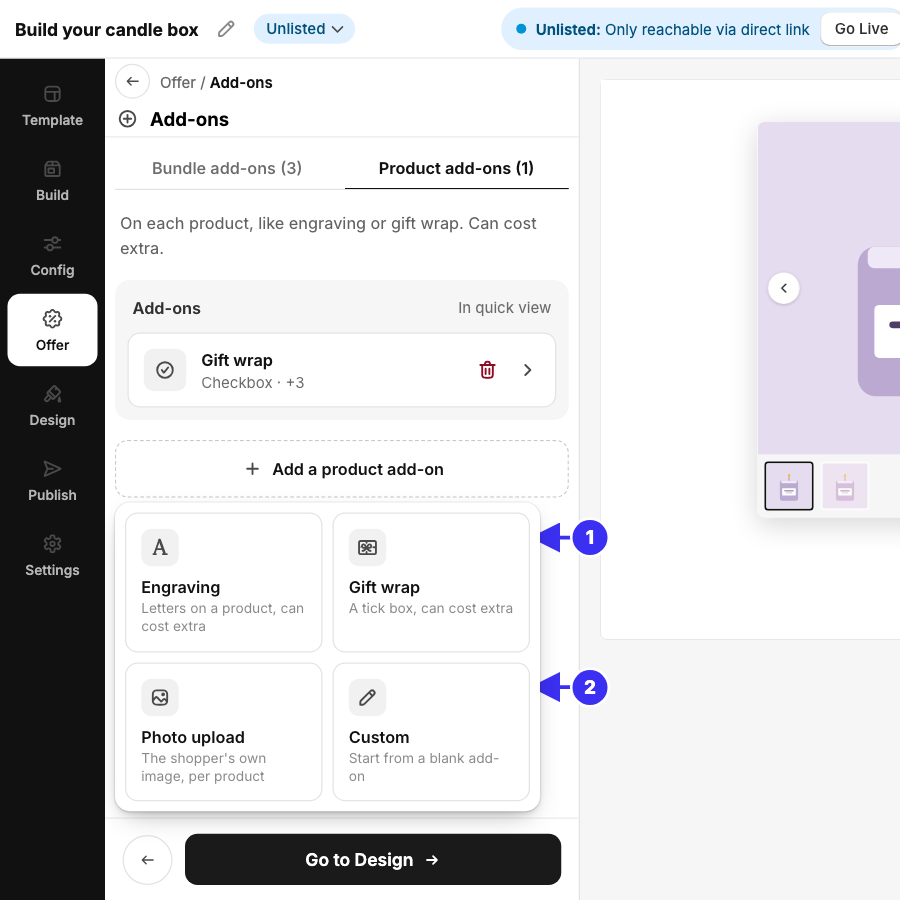
1. The ready-made product add-ons. 2. Custom, for a blank one.
Sell gift wrap from your own product
Pick the Gift wrap card, a tick box. Under Price, pick A product's price and choose your gift wrap product and its variant. Each item the shopper ticks it on buys one gift wrap at that product's price, from its stock. Show it on every product, or only on the ones you can wrap.
The Photo upload card works the same way when you print the shopper's own image on a product: Shopify stores the file and the order line links to it. It is free or charged like any other product add-on.
Charge for a gift box once per bundle
On the Bundle add-ons tab, pick the Gift box card, a tick box for the whole bundle. Under Price, pick A fixed amount and type the box's price. It is charged once whether the bundle holds three items or twelve, and the bundle's total in the cart includes it as soon as it is ticked. Pair it with a gift message and To & From, which sit beside it in the bundle cart or a last step.
A multi-option bundle takes bundle add-ons too, shown just above your theme's Add to cart, and its total includes the charge. Product add-ons need product cards and quick view, so they are for build your own bundles.
What reaches checkout and the order
A charged add-on is part of the bundle. With the cart merge on, its price is added to the bundle's line, and the bundle discount never applies to it, so a 15% tier takes 15% off the products and nothing off the engraving. The bundle discounts page covers how tiers are counted. The answers are on the order: an engraving on its product's line, a gift box on the bundle's line.
Without the cart merge (a third-party checkout with Use cart transform off, or a bundle bought on subscription), each charge is its own line at full price, and on a subscription it is charged once, not on every renewal.
Frequently asked questions
Does the bundle discount apply to add-ons?
No. The discount is calculated on the bundle's products only. An add-on's price is always charged in full.
Can I charge for an add-on on a multi-option bundle?
Yes, for bundle add-ons, charged once per bundle and shown in the total above your theme's Add to cart. Product add-ons are for build your own bundles.
Can one product take several add-ons?
Yes. A product can take an engraving and gift wrap, each with its own price. The same product added twice with different answers is two items in the bundle cart.
What if I delete the hidden Bundle add-ons product?
The next save of a bundle with a fixed-amount add-on creates its variants again. It stays unlisted, so it never shows in your collections or search.
Every setting is in the build your own bundle docs, the features page lists everything else, and the app is free on the Shopify App Store with every feature included.